Browsing articles in "Presets"
Jan
16

New Lightroom 4 Presets – The HDR “Look”

Presets  //  3 Comments
   

I’ve mentioned before that coming up with new preset ideas has been pretty difficult these days. I feel like I’ve run through just about every preset combination possible in Lightroom. I mean, there’s only so many ways you can move a few sliders right :) It doesn’t take long before they all start looking the same (maybe with just a different name).

That’s why I was really psyched when I saw the Lightroom 4 changed some of the Develop module settings. Mainly because the changes are fantastic and help me edit my photos better. But, if I’m really being honest here, the changes open up more possibilities for new presets as well as a chance to go back and tweak some older presets too.

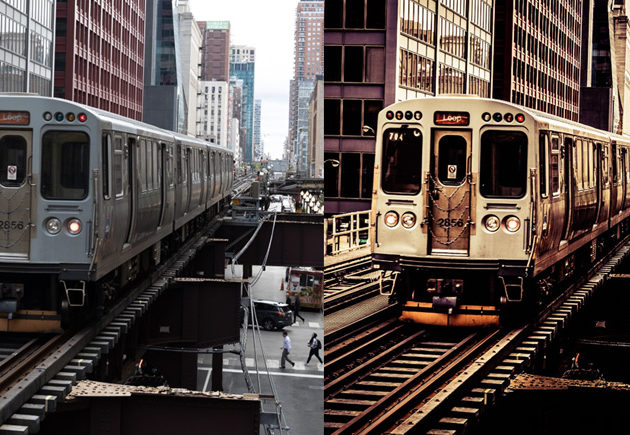
I knew right from the start that I was going to create a preset that simulated an HDR “look”, so here’s my first one. There’s 3 different versions of it (Light, Medium, and Strong) and each has a few of the new sliders incorporated into it as well as some other settings. As always, let everyone know what you think. However, I caution you now… if you’re one of those that don’t like HDR photos then you may want to consider staying away from these presets ;) I’m just sayin’.

Here’s a quick Before/After (click for larger image):

• Download the presets here.
• Here’s a link to a video that shows you how to install the presets

Jan
9

Lightroom Presets – Red River Greeting Cards

Presets  //  No Comments
   

Hey everyone. I’ve found some Lightroom templates from Red River that I thought I’d share. I don’t think they’re new but, well, they’re kinda new to me because I just found them. I’ve always been a big fan of Red River paper and I noticed that they have some greeting cards and templates for Lightroom 3 on their site. They even have a video on how to use the templates if you’re new to it. Here’s the link to download the templates. Enjoy!

advertisement
Jan
3

More Lightroom Calendar Presets

News, Presets  //  1 Comment
   

Hey everyone! I hope you’ve enjoyed the free Lightroom Calendar templates from yesterday (thanks again to Ed Weaver for creating and sharing them). Just like last year, blog reader (Thomas Ljungberg) was kind enough to create some more calendar print templates for those of you outside the US. You can download the templates for free. He also has the full PSD files available for €10 in case you’re interested. If you download them, by all means please let us know what you think. Thanks!

Jan
2

Free Lightroom Presets – Calendar Templates

Presets  //  1 Comment
   

Happy New Year everyone! I had an absolutely awesome holiday week. Lots of rest and relaxation and time to recharge, and I hope all of you did as well. I’m kicking off the first post of the year just as I did last year – free calendar presets. Blog reader and photographer, Ed Weaver, sent me a message on my Facebook account last year with some presets he’d developed. Once I saw his sample image I immediately said to myself, “I wish I thought of that! I wonder if he’ll notice if I steal them and call them my own?” :) Totally kidding on the second part. I do wish I thought of it but I didn’t. Luckily Ed was kind enough to let me share the presets here on the blog last year and he’s updated them again for 2012. In fact, he even went above and beyond this year and included all of his source files and directions on how to use them.

Before we go any further, here’s an example (click to see it larger):

Installing the presets is a little bit different than normal so make sure you check out Ed’s installation guide included in the zip file. Also, Ed created the calendar templates using Pages, and he even added the source files if any of you want to look inside or tweak ‘em.

If you like these, I’d sure appreciate it if you share this page on your Facebook, Google+, Twitter accounts, and anywhere else. Also, please stop by Ed’s site, pay him a visit and say thanks. Finally, let’s give a big round of applause to Ed Weaver for sharing these. That’s what makes running this blog so cool. It’s the interaction and ideas that come from the people who visit it and if there’s anything that I’m incredibly grateful for this new year, it’s the support I get from all of you. Thanks Ed, you ROCK! I appreciate it and I know everyone here does as well. As always, let us know what you think. Enjoy!

Click here to download the zip file that contains all of the templates.

Dec
5

Lightroom and Retouching

News, Presets  //  No Comments
   

Today’s post has two purposes: 1) To show you some retouching presets that I created a while back and, 2) to let you know I’m teaching a free live webcast tonight on retouching (part of NAPP’s Retouch Week). So… first. A while back I released some retouching presets for the Adjustment Brush. Since then, Adobe has also added some presets to the default list. So if you’ve got both, you’ve got a good bunch of presets for retouching. In fact, I was teaching my Lightroom seminar in Philly the other day and some one came up and asked if I’d show how to use the Adjustment Brush to whiten teeth. I showed him to just go to the Adjustment Brush, go to the Effect pull-down list and there’s a preset for it. Just brush on the teeth and you’re done. Now, I probably wouldn’t use Lightroom for heavy duty beauty retouching but for a quick retouch, it does a darn good job. However, if you’re still on the fence about how to retouch in Lightroom, then read on.

Next, I’m co-teaching a live webcast from 6-7pm tonight with Pete Collins on Retouching. It’s part of NAPP’s Free Retouch Week. One week of free retouching tips, tutorials, techniques, etc… from NAPP. You can watch the first time for free, but the replay will live on the NAPP site for NAPP members only. One of the things we’ll demo tonight is using Lightroom for some quick retouches (mainly for wedding and event photography). These lives webcasts are always a blast. We’ll take some live questions and overall people really seem to dig ‘em, so make sure you stop by and tune in if you’re around. Here’s the link. Have a great day!

Nov
7

Lightroom Presets – The “300″ Look

Presets  //  15 Comments
   

I’m getting ready to teach my Lightroom 3 Live seminar in Arlington, Texas today. As always, my invite stands – if you’re coming to the seminar please come on up and say hi at some point. It’s great to see the faces behind the blog.

Now to the Lightroom presets. This one is another update. Sure the movie it was based on (The 300), isn’t new but I still see the style of this preset used all the time. You’ll notice there are 2 presets in the zip file. One of them is for a harsher stronger look (good if you’re looking for that gritty effect). The other one is for a softer look (better for portraits that have women in them).

Here’s a quick Before/After (click for larger image):

• Click here to download Matt’s 300 Look Preset

Oct
24

Lightroom Presets – Wedding Fairytale Glow

Presets  //  37 Comments
   

Happy Monday Lightroom peeps (that’s hip slang for “people” which I’m not sure even makes sense ;) )

• Before I get to the presets, I’m starting a 5 city tour of the “Lightroom 3 Live” 1-day seminar this week (Phoenix, Indianaplolis, Tampa, Arlington, and Philadelphia). Make sure you’re following me on Google+ and keep and eye out here as I’ll be giving away some tickets to the seminar.

• Now for the presets. Here’s an update and an extra version to a preset I released a while back. I see a lot in family portraits and wedding/engagement photos. There’s two versions: one with a dark edge vignette and one iwth a bright edge vignette (last time I only released the dark edge preset). I find it works best on portraits and photos that tend to be brighter in nature (notice the sky is blown out in the before version already). But give it a try on anything because I’ve seen it work great on close up portraits as well. That’s the cool thing about presets – they’re easy to try and easy to undo if you don’t like it. Let me know what you think.

To install:
1) Unzip the preset zip file on to your desktop
2) Go to the Develop module. NOTE: YOU MUST BE THE DEVELOP MODULE
3) Go to the Presets panel on the left. Right click anywhere in it and choose Import.
4) Select the .lrtemplate files you unzipped in Step 1 and click Import NOTE: DO NOT IMPORT THE ZIP FILE

Click here to download the presets
Click here to see a sample of the preset.

Oct
19

Lightroom Presets – Fall Foliage

Presets  //  24 Comments
   

Well, it’s that time of year where the trees start changing color. When I grew up, my dad was absolutely meticulous about our backyard, so the fall season only reminds me of many days of raking leaves after school :)

As an adult though, I can enjoy the season much more (since I live in Florida and don’t have to worry about leaves anymore). Last week I co-taught a landscape photography workshop in the Northeast. We had the chance to photograph places in Vermont, New Hampshire and Maine and saw some absolutely beautiful scenery and gorgeous fall color. I realized, as I was going through my photos, that I was making some of the same tweaks to many of “fall color” photos so I made a preset for it. Here’s a quick example of the kind of photo I found it works best on.

Before (click for larger image)

After (click for larger image)

For me, it tends to work great on photos without much sky but lots of trees and color. Also, I found it worked best on photos that were taken on semi-overcast or cloudy days. Believe it or not, overcast or cloudy skies are one of the best times to photograph fall foliage. Sunrise and sunset are great times as well if you have nice soft light. For me personally, I always find that overcast skies help make those colors and details in fall foliage stand out. And that’s where this preset really came in handy. Enjoy and let me know what you think.

Click here to download the Fall Foliage Presets
• Follow me on Google+
• Follow me on Facebook
• Follow me on Twitter

Oct
11

Presets – Landscape Graduated Filters

Presets  //  18 Comments
   

Hi everyone (presets below – quick story first). I’m teaching a landscape workshop in the northeast this week with legendary photographer Bill Fortney. We’ve been having a blast so far. It’s a great group. Lot’s of laughs and each day just keeps getting better. The weather has been nearly perfect (nice and warm for this Florida-loving guy). We’ve been photographing some small towns and great fall color, so I figured I’d share a couple of my photos. One was from our sunset shoot. We were actually at a small church when I turned around and saw it. The moon and the slight touch of color from the setting sun on the hills caught my eye. The other is from our morning shoot earlier today. Not much done to them. Some cropping and a quick Exposure, Blacks and Vibrance adjustment. I did have to clone out my shadow in the church photo, but Content Aware made it about a 3 second fix.
(Click on the photo for a larger version)

Anyway, on to the presets. This week I’ve got some updates to my graduated filter presets. Since I’ve been shooting a lot of landscapes over the past couple days, they’re getting use a decent amount. I used to adjust the Exposure setting in the Graduated Filter but lately I’ve been digging the Brightness setting better for skies. Since Graduated Filters are mainly used over sky, I figured I’d make some changes. Now, there are literally a ton of ways I can go with these presets so I’ve decided to get fairly specific and create presets for blue skies. When you download them, you’ll see they’re listed in -1, -2, and -3 increments (they’re not actual photography f/stops though, just the overall darkness level). You’ll also see that I’ve included placement for 3 locations. Top Third, Bottom third, and Middle. The top and bottom probably make sense since we typically try to position a horizon at the top third or bottom third. However, after looking through some of my photos, I’ve realized that when there’s another subject in the photo the horizon will often need to shift toward the middle which is why I included that one. Oh, and there’s also separate presets for vertical and horizontal photos because Lightroom has issues with presets created for just one or the other. Finally, there’s a few other settings thrown in there to help enhance the sky as well as any clouds in the sky. Whew! That sounds like a lot for some simple presets doesn’t it? The good news is all you have to do is click on them to use the preset.

That’s about it for today. I hope you enjoy ‘em. Let me know what you think. Thanks :)

• Click here to see a sample of the presets.
• Click here to download Matt’s Graduated Filter Presets

Sep
26

Lightroom Print Preset – Multi-Photo Portrait Grid

Presets  //  59 Comments
   

I’ve been working with the print templates a lot lately. A while back I released a multi-photo travel template that turned out to be pretty popular. I went back to it yesterday to work with some portraits, and made a few tweaks since the last time I’ve used it. Mainly, I went in and modified some of the spacing options and added some templates with a wide space between them and some others with a narrower space. There’s also a version with a black background and one with a white background.

Some tech specs: It only works in Lightroom 3. It’s based on a 12×12 inch paper size. There’s room for 16 photos in it which makes a really nice way to show off a portrait or engagement session.

Here’s how it works: First download and import the new print template. Look at the directions below and make sure you DON’T install this in the Develop module like you do the rest of the presets. In the Print module, go to User Presets and select the new template. It’ll show a blank page and all you have to do is drag your photos from the filmstrip into it.

Here’s a few samples (Click for a larger version).

(White Thin Border Preset)

(White Thick Border Preset)

(Black Thick Border Preset)

Also, here’s some other samples from the last preset, so you can see what it looks like with different photos as well as with the Photo Border option (in the Print module) turned off and on.


(Photo Border option turned off)


(Photo Border option turned on, Page Background Color set to white)


(Photo Border option turned on, Page Background Color set to black)

Customize – you can also customize this one by changing the “Page Background Color” option (which is in the “Page” panel in the lower right side of the Print module), as well as the Photo Border settings.

These are a little different to install than your usual Develop presets:
1) Click here to download the preset.
2) Unzip the preset zip file on to your desktop
3) Go to the PRINT MODULE (NOTE: THESE ARE NOT DEVELOP PRESETS SO DON’T INSTALL THEM THERE!)
4) Go to the Template Browser on the left. Right click on the words User Presets and choose “Import“.
5) Select the .lrtemplate file you unzipped in Step 1 and click Import (NOTE: DO NOT IMPORT THE ZIP FILE)

Advertisement

Lightroom Killer Tips

Matt Shooting Get your weekly dose of the coolest Adobe® Lightroom® tutorials, tips, time-saving shortcuts, photographic inspiration, and undocumented tricks with Matt Kloskowski from Kelby TV. New videos posted each week and other news over the week. Find out more about Matt at his portfolio site.
National Association of Photoshop Professionals Adobe Systems Inc.
Advertisement